Home
Journi Connect
Terms and Agreement
BTOA Taxi App Onboarding
Follow these step-by-step instructions to join the BTOA Taxi beta program and start using the app.
Android Instructions
iOS Instructions
1
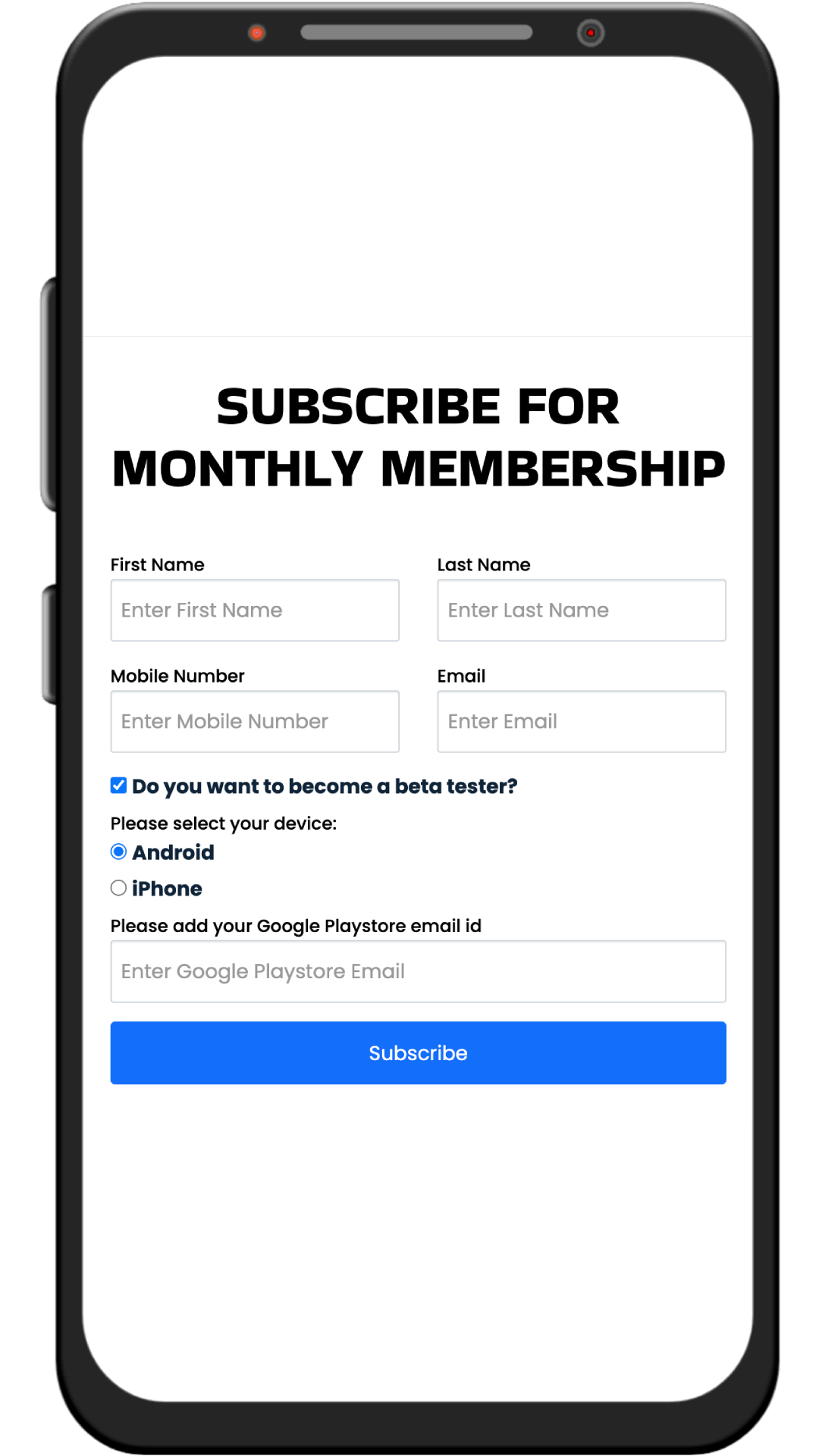
Share Your Google Play Store Email ID
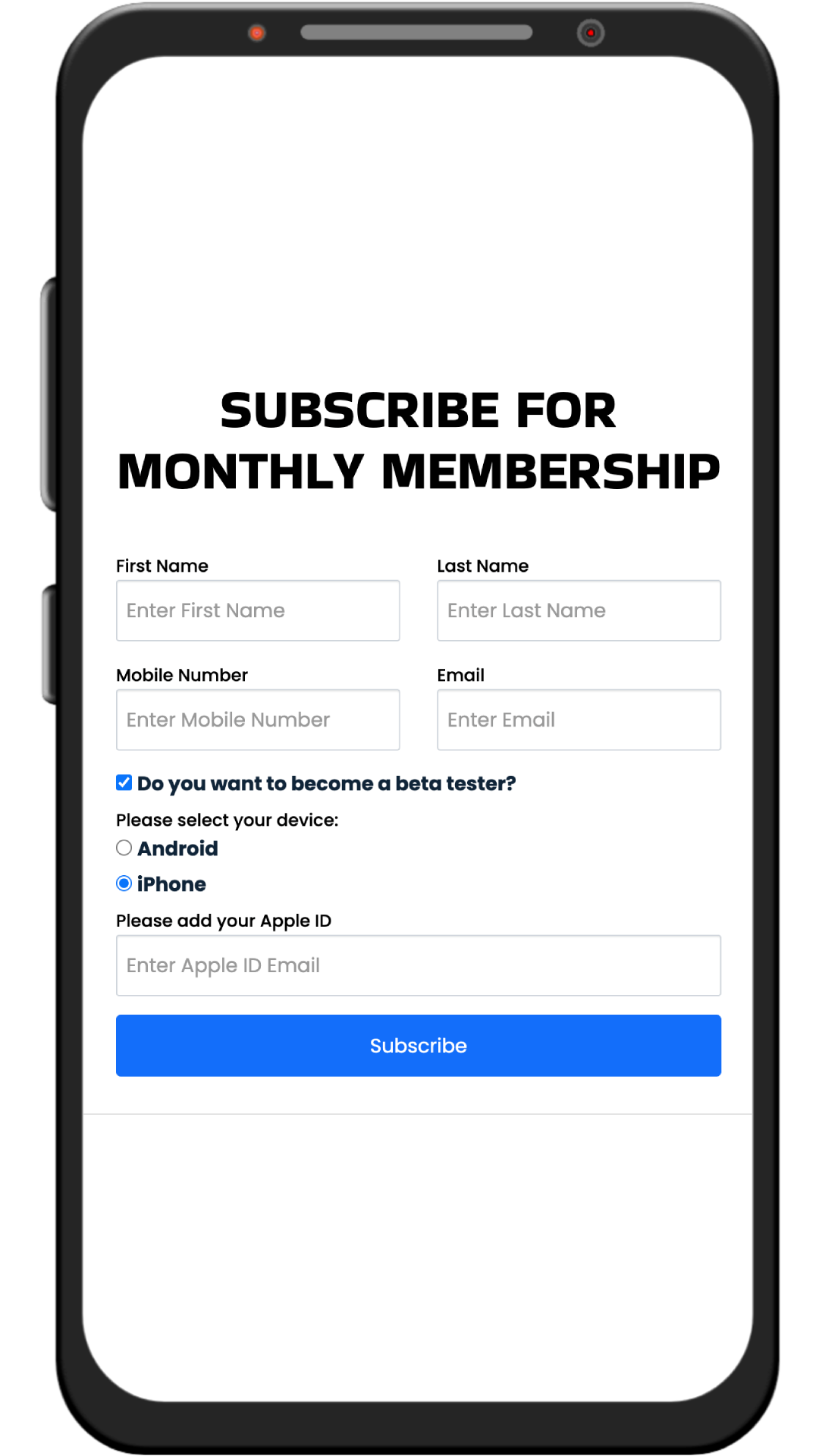
Visit the BTOA BETA Sign-Up Page and fill out the form.
Provide the email address linked to your Google Play Store account (required for beta access).
Submit the form and wait for an invitation email (within 24–48 hours).
Sign Up for Beta Access Now
2
Email Notification
Check your inbox for an email titled "Invitation to Test BTOATaxi on Google Play."
If you don't see it, check your Spam/Promotions folder.
Join Beta
3
Accept the Invitation
Open the invitation email and tap the "Join Beta" link.
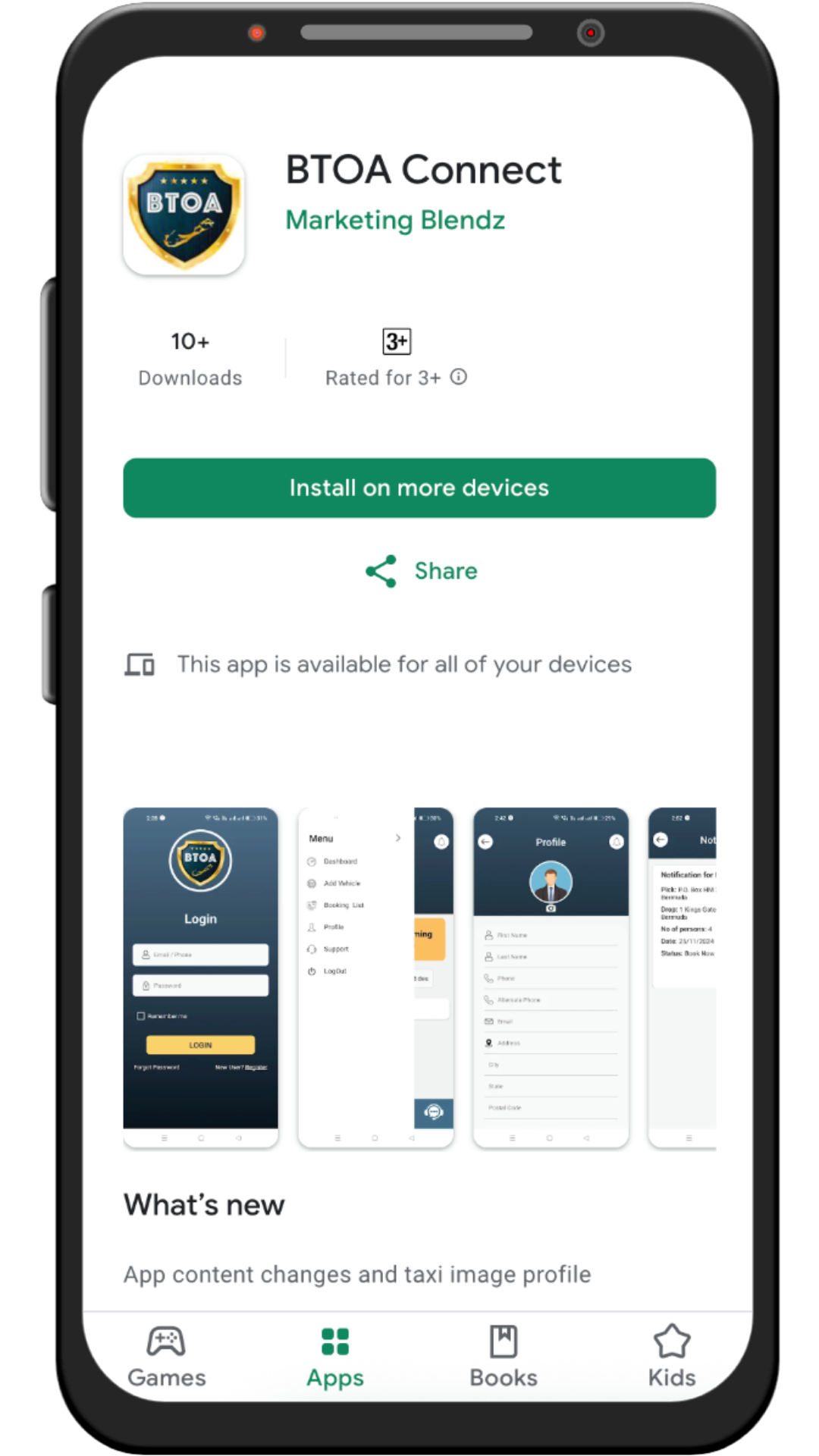
This will redirect you to the Google Play Store page for the app.
Join Beta
4
Download the BETA App
On the Google Play Store page, tap "Download" or "Install."
Wait for the app to install (Note: This is a pre-release version).
Once installed, tap "Open" to launch the app.
5
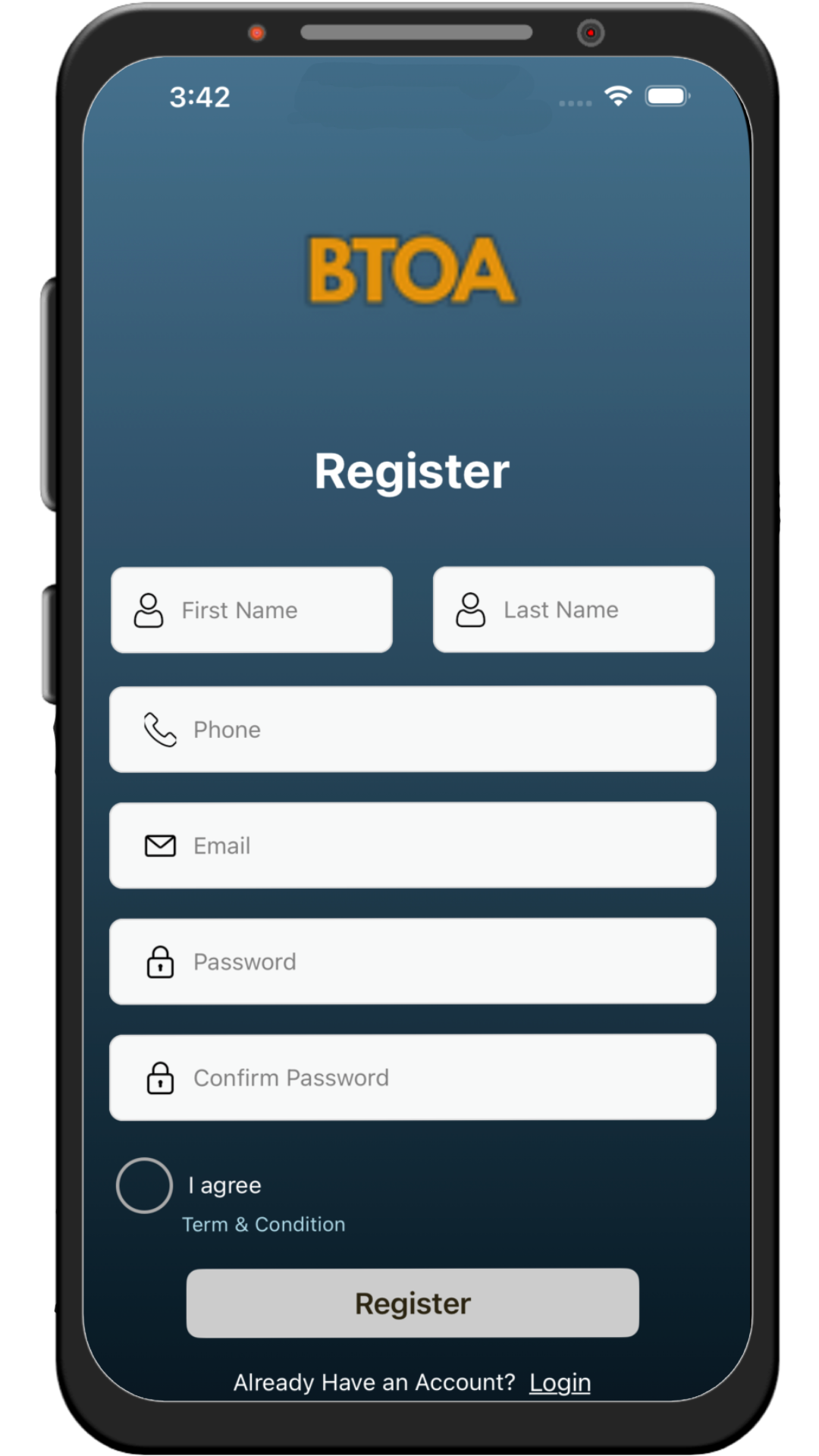
Register an Account
Open the app and tap "Sign Up."
Enter your: Full name, BTOA membership ID (if applicable), Phone number, Email address, Password
Agree to the Terms of Service and tap "Submit."
6
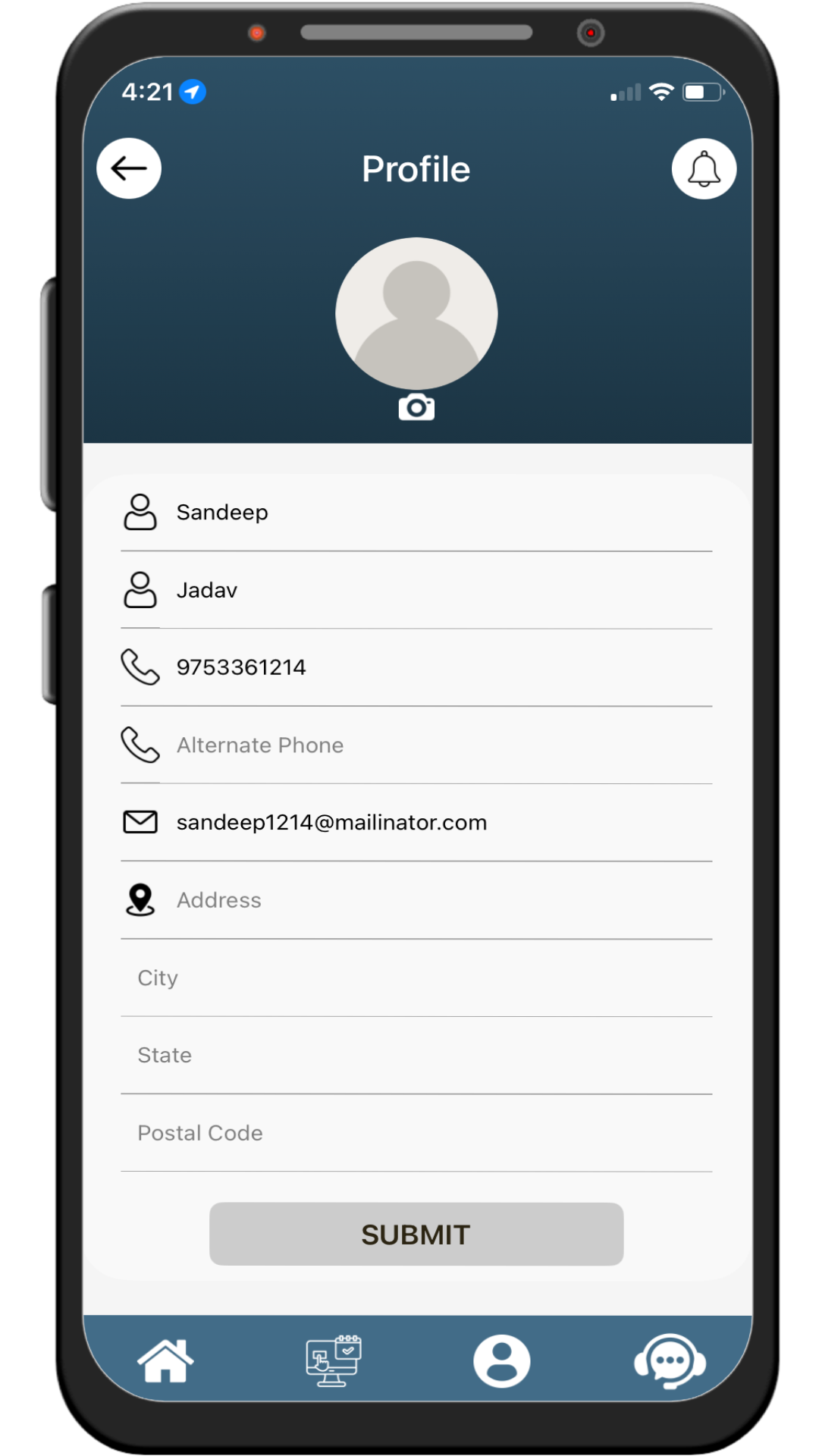
Manage Your Profile
Go to "Profile" in the app menu.
Fill in: Personal Details (driver's license, photo, etc.), Vehicle Information (make, model, license plate, insurance), Payment Preferences (if applicable)
Tap "Save" to confirm.
7
Manage Rides
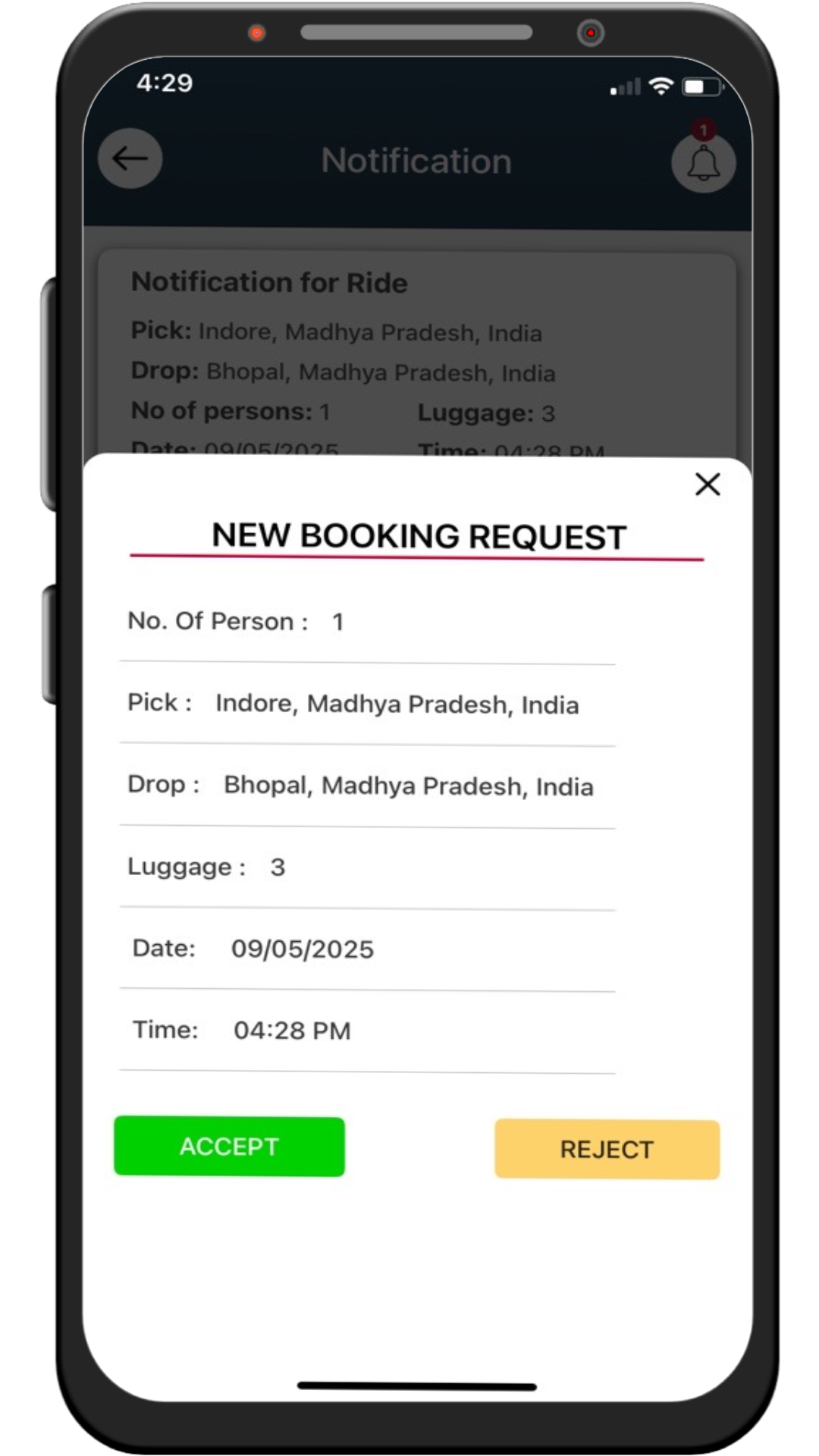
Open the "Rides" tab to see available ride requests.
Tap "Accept" to confirm a ride.
Use the in-app map for navigation to pickup/drop-off.
Mark the ride as "Completed" when finished.
8
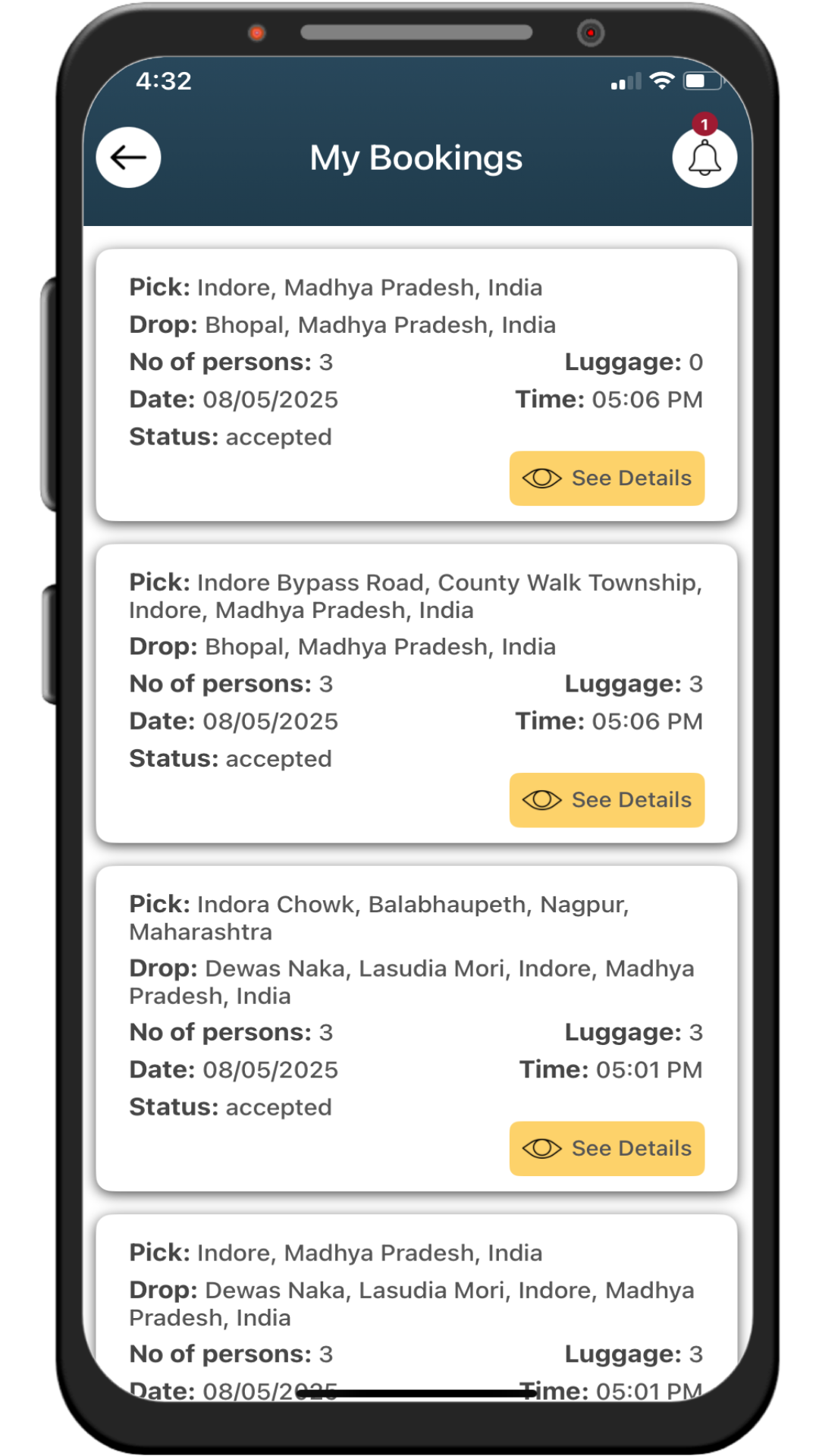
View Ride History
Go to the "History" section to review past rides.
Filter by date, earnings, or ride status.
Tap any ride for details (fare, distance, customer feedback).
9
Leave Feedback
We'll send you a separate email with detailed steps on how to leave feedback for your experience.
Your input is crucial in helping us refine the BTOA Taxi App for a smoother experience.
Stay tuned!
1
Share Your App Store Email ID
Visit the BTOA BETA Sign-Up Page and fill out the form.
Provide the email address linked to your Apple App Store account (required for TestFlight access).
Submit the form and wait for an invitation email (usually within 24–48 hours).
Sign Up for Beta Access Now
2
Email Notification
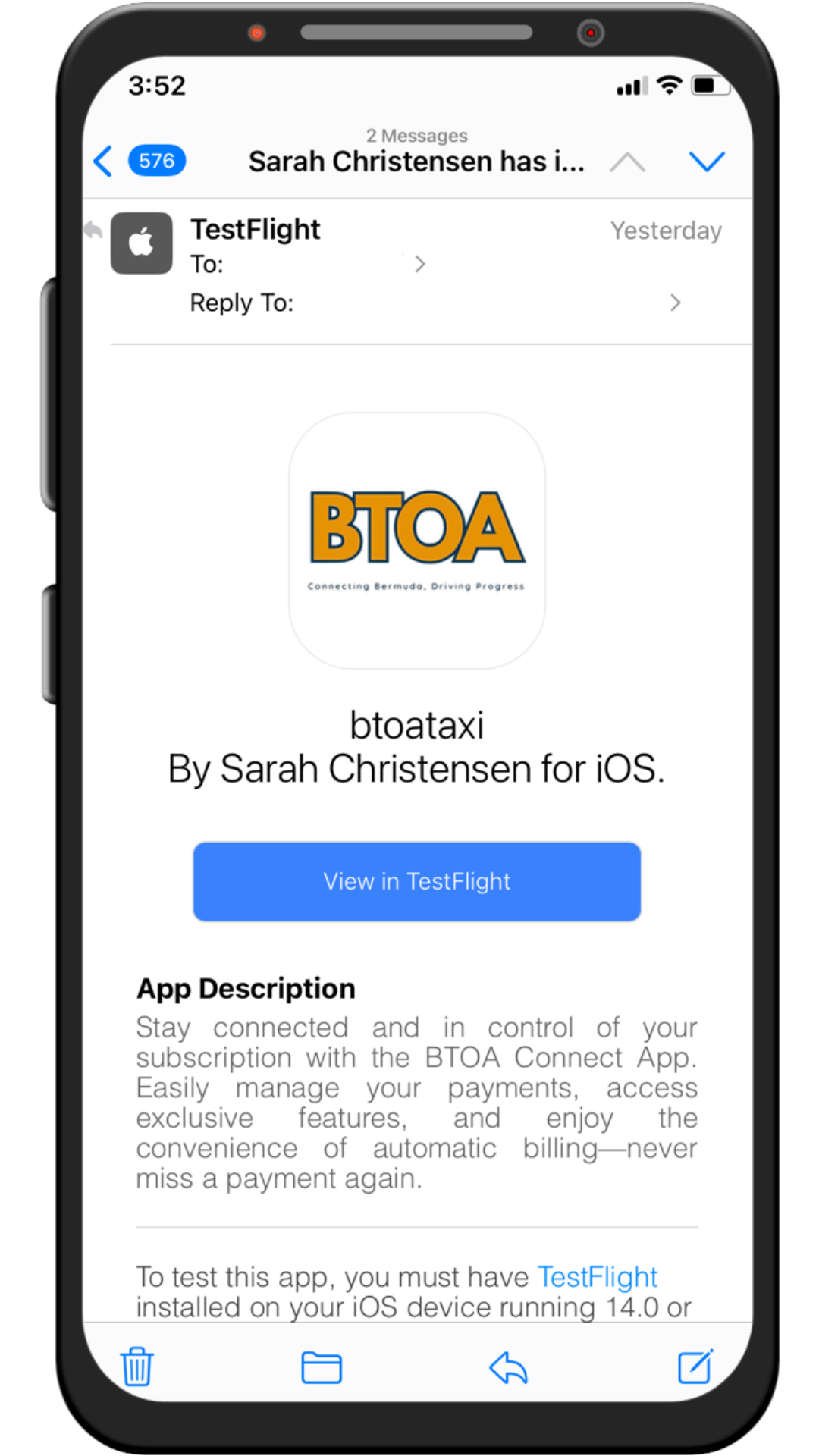
Check your inbox for an email titled "Invitation to Test BTOATaxi via TestFlight."
If you don't see it, check your Spam/Junk folder.
3
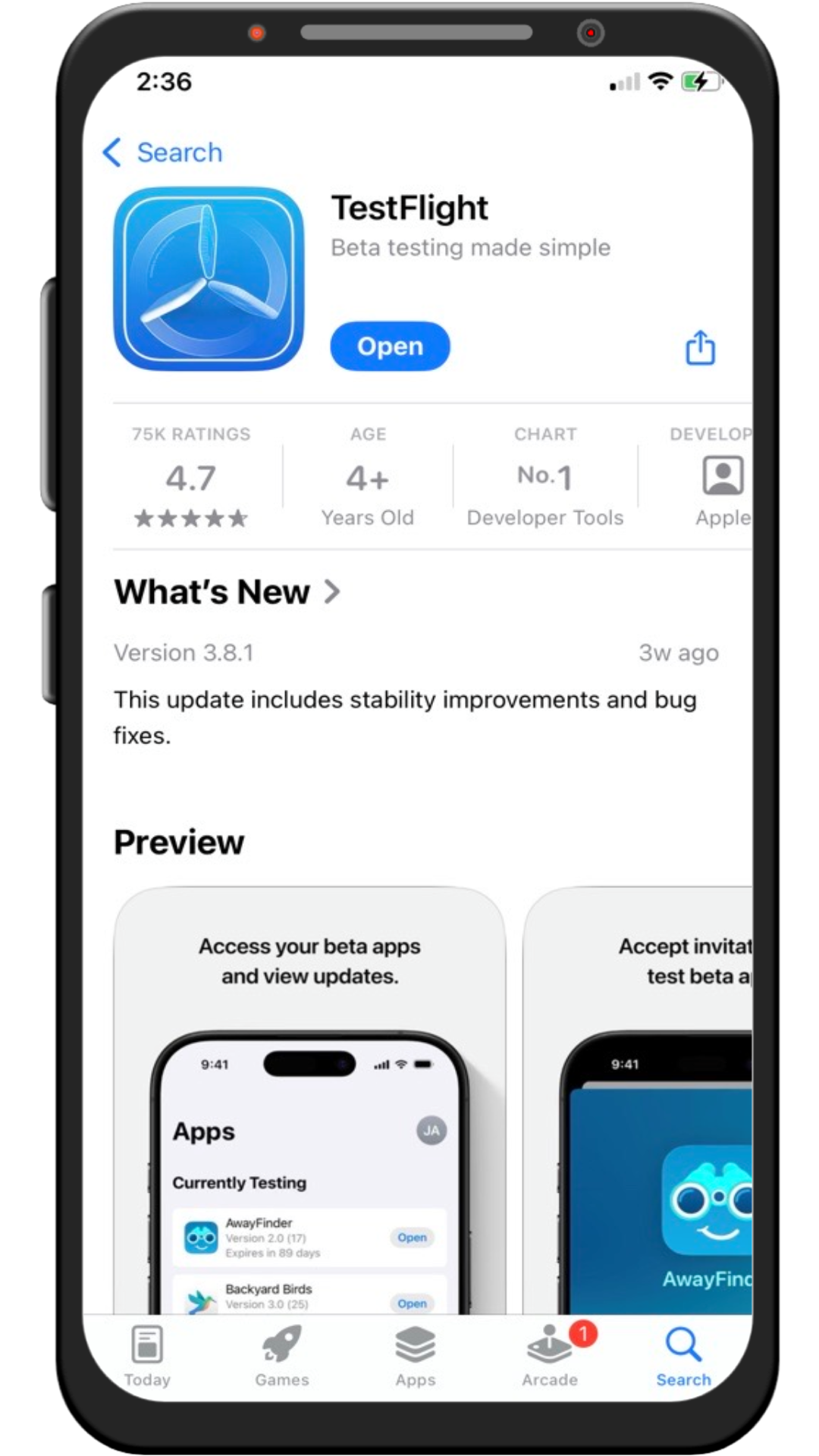
Download the TestFlight App
Open the Apple App Store on your iPhone.
Search for "TestFlight" (Apple's official app for beta testing).
Download and install the app.
Download TestFlight App
4
Accept the Invitation
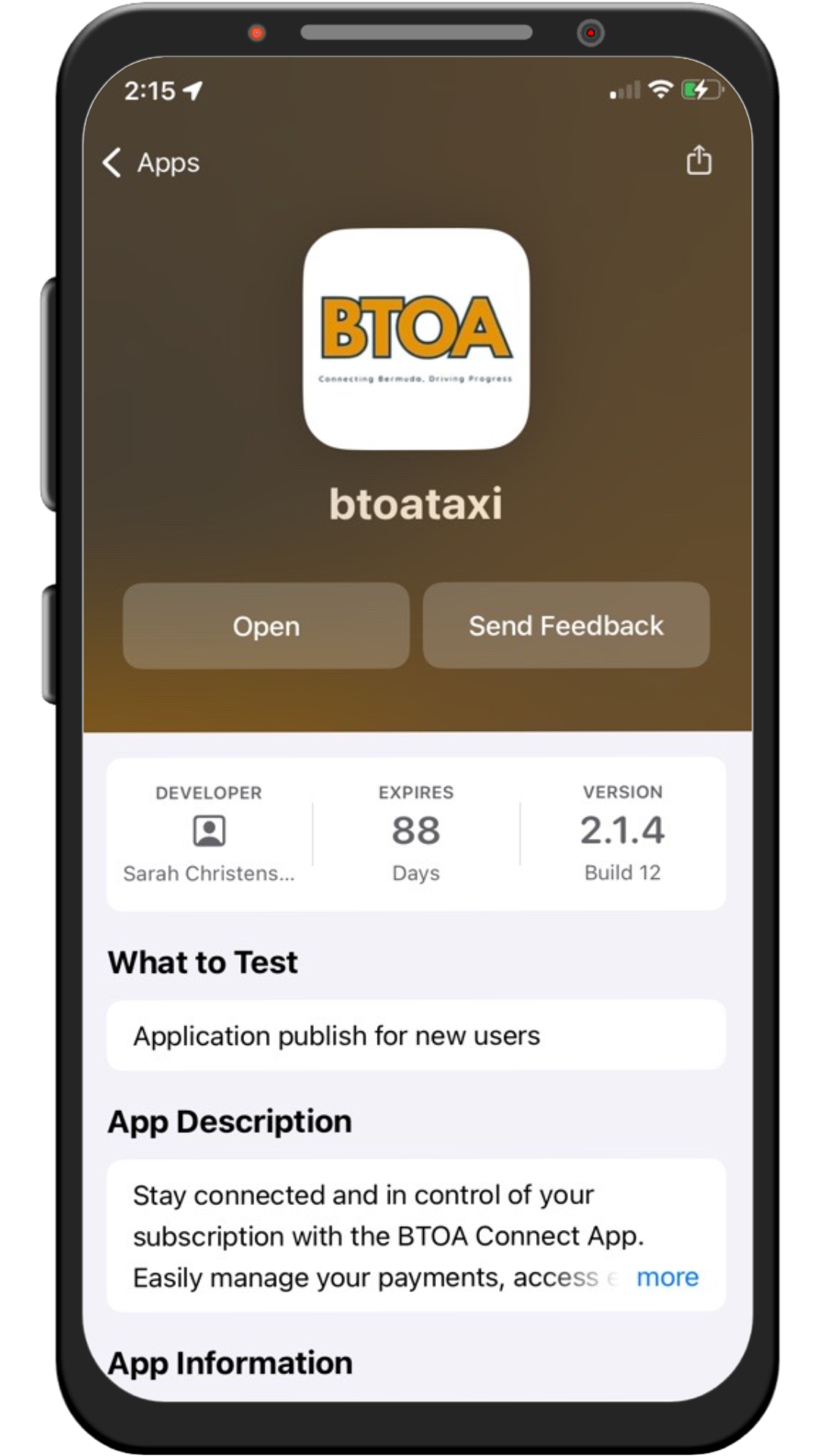
Open the TestFlight app.
Tap "Accept" on the invitation for the BTOA BETA app.
Tap "Install" to download the beta version of the app.
5
Download the BETA App
Once installed, open the app from your home screen.
You'll see a "Start Testing" button—tap it to begin.
6
Register an Account
Open the app and tap "Sign Up."
Enter your: Full name, BTOA membership ID (if applicable), Phone number, Email address, Password
Agree to the Terms of Service and tap "Submit."
7
Manage Your Profile
Navigate to "Profile" in the app menu.
Fill in: Personal Details (license number, photo, etc.), Vehicle Information (make, model, license plate, insurance), Payment Preferences (if applicable)
Tap "Save" to confirm.
8
Manage Your Rides
Go to the "Rides" tab to view available ride requests.
Tap "Accept" to confirm a ride.
Navigate using the in-app map for pickup/drop-off.
Mark the ride as "Completed" once finished.
9
View Ride History
Open the "History" tab to see past rides.
Filter by date, earnings, or ride status.
Tap any ride for details (fare, distance, customer feedback).
10
Leave Feedback
We'll send you a separate email with detailed steps on how to leave feedback for your experience.
Your input is crucial in helping us refine the BTOA Taxi App for a smoother experience.
Stay tuned!